OLED Screen Test: How to Check Your Display for Problems

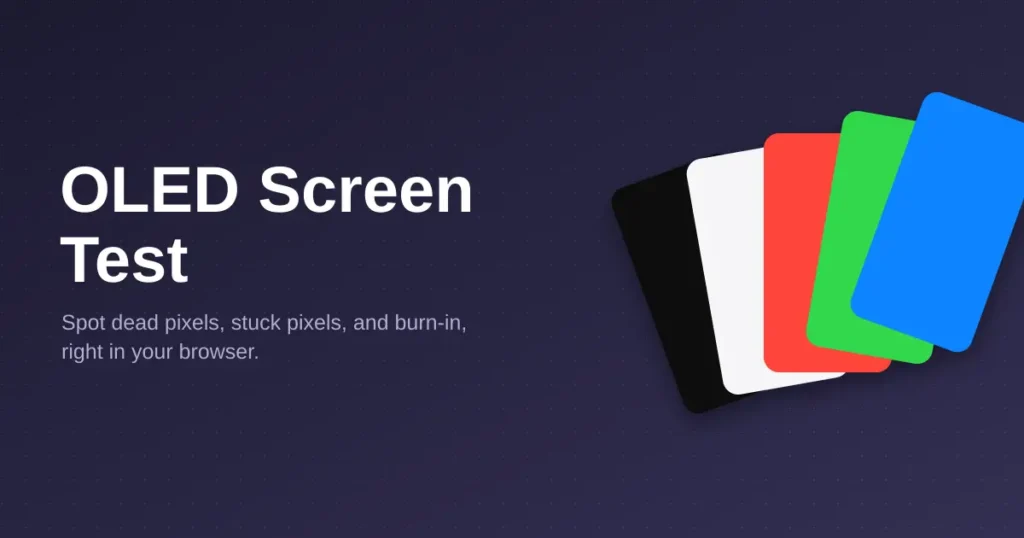
If your OLED screen looks a little off, a shadow that won’t fade, a pixel that never lights up, or a corner that looks slightly duller than the rest, you can run a full OLED screen test in your browser in under five minutes. No app, no download, no account. Just a few full screen colors and a close look.
What an OLED Screen Test Actually Checks
A proper OLED screen test covers four separate problems, and each one shows up against a different background color:
- Dead pixels stay black no matter what’s behind them. They show up clearest on a white background.
- Stuck pixels show one color constantly, whether or not that color belongs there. They show up clearest on a black background.
- Image retention is a temporary ghost of whatever was on screen before. It fades on its own after a few minutes.
- Burn-in is the permanent version of the same thing. It doesn’t fade, and it usually carries a faint color tint rather than a plain gray shadow.
That last point matters more than most guides mention, so it gets its own section below.
How to Run an OLED Screen Test
- Open a black screen and go fullscreen. Sit in a dim room and look for any small dot of light that doesn’t move, that’s a stuck pixel.
- Switch to a white screen. Scan the corners and edges closely. A dark speck here is a dead pixel; a faint shadow is retention or burn-in.
- Run through solid red, green, and blue screens one at a time. Each color isolates a single subpixel type, so a defect that’s easy to miss on white often jumps out clearly on a pure color.
- Move your eyes slowly across the whole screen at each step instead of glancing once. Edge defects hide easily if you only check the center.
This sequence works the same way on a laptop, monitor, phone, or TV, since it’s the display technology that matters, not the device.
Image Retention vs Burn In: How to Tell the Difference
Most guides treat these as the same thing. They’re not, and telling them apart saves you from worrying about something that fixes itself.
Image retention shows up right after a static image sits on screen for a while, a spreadsheet, a paused video, a pinned app. It looks like a faint outline of that content. Leave a solid color screen running for two or three minutes, then switch colors. If the ghost fades within a few more minutes, or clears after the screen has been off for a while, that’s retention. It’s temporary and doesn’t indicate damage.
Burn in is what’s left when retention doesn’t clear. If the same shadow is still visible after the screen has rested for several hours, or after a full restart, you’re looking at actual pixel wear rather than a passing effect.
The Colored Tint Is the Real Burn In Tell
Here’s the detail most people miss: OLED subpixels don’t age at the same speed. Blue wears out fastest, green next, red slowest. That means a taskbar or logo that sat in one spot for months rarely leaves a plain gray mark, it leaves a tinted one.
A pink or magenta tint means the blue channel has worn faster than red in that spot. A greenish tint means blue and red have both faded more than green. If you spot a tint like this on a white or grey background, that’s a stronger signal of real burn-in than a plain gray shadow would be.
A Note on High-Resolution Screens
Phones and modern laptops often run at 2x or 3x pixel density, which means the operating system reports fewer “pixels” than the screen physically has, several real subpixels get grouped into each one you see described in settings. A single stuck subpixel can be too small to notice at normal viewing distance on a screen like this, even though it’s technically there. If your test looks clean by eye but you suspect a problem, a close up photo of the solid black or white screen, zoomed in after the fact, will often reveal a faint dot that your eyes missed live.
What This Test Can’t Tell You
To be upfront about it: this is a visual test, not a diagnostic instrument. It doesn’t measure brightness in nits, calibrate color, or auto detect anything. You’re the one judging what you see on each solid color screen, which is exactly why the step-by-step approach above matters, a rushed glance misses far more than a slow one. Nothing you look at here gets uploaded or stored anywhere, it’s just your screen and your browser.
How Often to Run an OLED Screen Test
Every few months is enough for normal use. If your screen spends long stretches on the same static content, a dashboard, a spreadsheet, a pinned chat window, testing monthly is worth the five minutes, since catching early signs of retention gives you a chance to change habits (lower brightness, add a screensaver) before it turns into permanent burn in. Samsung‘s own support documentation on OLED panel care is a solid reference if you want more detail on how manufacturers approach this.
Quick Reference: What Each Check Applies
| Check | LCD screens | OLED screens |
|---|---|---|
| Dead pixel | Yes | Yes |
| Stuck pixel | Yes | Yes |
| Backlight bleed | Yes | No, OLED has no separate backlight |
| Image retention | Rare | Yes, usually temporary |
| Burn-in | No | Yes, usually permanent |
FAQ
Can I test for OLED burn in without installing an app?
Yes. A browser based OLED screen test using full screen colors catches dead pixels, stuck pixels, retention, and burn in without installing anything.
Why does a stuck pixel show up on one color but not another?
Each pixel is made of red, green, and blue subpixels. If only one subpixel is stuck, it only becomes obvious when that specific color fills the screen.
Is it normal for an OLED screen to have a few dead pixels?
A very small number of dead pixels is common and usually falls within a manufacturer’s acceptable range. Track them over time rather than judging from a single test.
How do I know if a shadow is burn in or just retention?
Let the screen rest, either off for a few hours or on a different solid color for several minutes. If the shadow fades, it was retention. If it’s still there afterward, it’s burn in.
More Screen Tips
Monitor Refresh Rate Test: How to Check and Set Your Hz
Refresh rate is how many times per second your screen redraws the picture, measured in hertz (Hz). A…
How to Fix Screen Flickering on Windows 10 and 11
Use Task Manager to tell a driver problem from an app problem, then work through proven fixes for…
 Screen Tips
 How to Use Your Screen as a Light: Calls, Reading, Photos
Turn any phone, laptop, or monitor into a soft ring light, reading lamp, or backup light with the…