Monitor Refresh Rate Test: How to Check and Set Your Hz

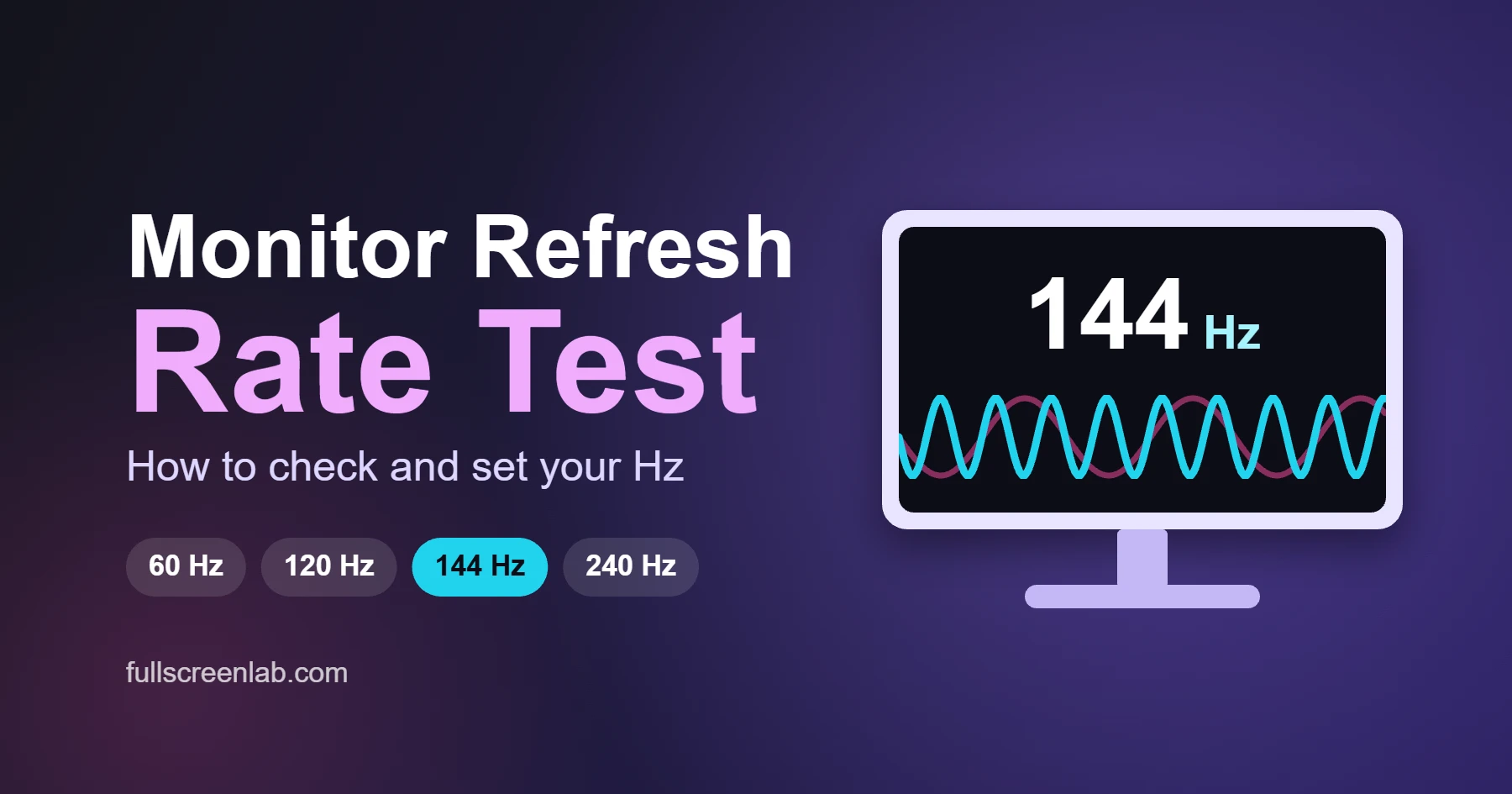
Refresh rate is how many times per second your screen redraws the picture, measured in hertz (Hz). A monitor refresh rate test checks that your screen is really running at the rate you paid for. It takes about three minutes: confirm the number in your display settings, open a fullscreen bouncing logo, and watch how smoothly it moves. Here is how to do it on Windows and Mac, and what to fix if the screen is stuck at 60 Hz.
On this page
- What Refresh Rate Means
- How to Check Your Current Refresh Rate
- How to Run a Monitor Refresh Rate Test
- Why Your Monitor May Be Stuck at 60 Hz
- How to Change Your Refresh Rate
- Which Refresh Rate Do You Need?
- Other Screen Tests to Run
- Monitor Refresh Rate Test FAQs
What Refresh Rate Means
A 60 Hz screen redraws the picture 60 times every second. A 120 Hz screen does it twice as often, which makes scrolling, mouse movement and fast motion look smoother and less blurred.
The rate printed on the box is the maximum the panel can do. Your computer has to be set to use it, and the cable, port and graphics driver all have to allow it. That is why a monitor sold as a high refresh rate model often runs at 60 Hz when it first comes out of the box.
How to Check Your Current Refresh Rate
Check the number your computer is actually sending to the screen.
- Windows 10 and 11: open Settings, go to System, then Display, then Advanced display. The current rate shows next to Choose a refresh rate.
- Mac: open System Settings, go to Displays, and look at the Refresh Rate menu. Some Macs offer it only under the display’s advanced options.
- Several monitors: select each one at the top of the settings page and check them one at a time. Each screen has its own rate.
How to Run a Monitor Refresh Rate Test
The setting only tells you what the computer asks for. The test shows what you see.
- Open a motion screen. Go fullscreen on the bouncing logo so nothing else is on the display.
- Watch the logo move. At a higher rate, its edges stay sharper and the motion looks smoother.
- Switch the rate and compare. Change between 60 Hz and your higher setting, then watch again. You should see a clear difference.
- Drag a window or move the mouse. Move quickly in circles. A higher rate leaves a shorter blurry trail.
- Scroll a long web page. Text should stay easier to read while it moves.
If you cannot see any difference between two settings, the screen may not be switching. Go to the next section.
Why Your Monitor May Be Stuck at 60 Hz
- The refresh rate was never changed. Windows and macOS often start at 60 Hz. Set it by hand, as shown below.
- The cable or port is the limit. Older HDMI cables and ports may not carry a high refresh rate at your screen’s full resolution. Try a DisplayPort cable, or the cable that came in the box, and check which port you are using on the monitor.
- The graphics driver is outdated. Update it from your graphics card maker, then restart.
- The monitor setting is off. Some monitors need a high refresh rate or an overdrive option turned on in their own on-screen menu.
- A dock or adapter is in the way. Some docks and adapters cap the rate. Plug the monitor straight into the computer to test.
If the picture also shakes or flashes, run our monitor flicker test, since a wrong refresh rate is a common cause. The Windows screen flickering fix walks through the repairs step by step.
How to Change Your Refresh Rate
- Windows 10 and 11: go to Settings, System, Display, Advanced display, then pick a higher value under Choose a refresh rate. Confirm the change when Windows asks.
- Mac: go to System Settings, Displays, then choose a new rate in the Refresh Rate menu.
- Laptops: turn on a high refresh rate only when you need it, since it can drain the battery faster.
- Check again. Run the motion test one more time to confirm the screen looks smoother.
Want the official steps? Microsoft explains how to change the refresh rate in Windows, and Apple covers the same setting in its Displays settings guide for Mac.
Which Refresh Rate Do You Need?
| Refresh rate | Best for | What you notice |
|---|---|---|
| 60 Hz | Office work, browsing, video | Fine for most people and the standard on basic screens |
| 75 to 100 Hz | Everyday use and light gaming | A small but visible improvement in scrolling |
| 120 to 144 Hz | Gaming and smooth scrolling | Clearly smoother mouse and window movement |
| 165 Hz and above | Fast competitive games | Most useful when your computer can also send that many frames |
If you mainly read, write or watch video, 60 Hz is enough. A higher rate pays off most for gaming and for people who notice blur when scrolling.
Other Screen Tests to Run
Refresh rate is one part of a full screen check. Run these next:
- Monitor flicker test for shaking or flashing.
- Backlight bleed test for light leaking at the edges.
- Dead pixel check for single faulty pixels.
- OLED screen test for burn-in and tint on OLED panels.
Monitor Refresh Rate Test FAQs
What is a monitor refresh rate test?
It is a quick check that your screen is really running at the refresh rate you set. You confirm the number in your display settings, then watch fast motion on a fullscreen page to see whether it looks smooth.
Why does my 144 Hz monitor show only 60 Hz?
The most common causes are the wrong cable or port, a refresh rate setting left at the default, or an outdated graphics driver. Check each one in that order.
Does a higher refresh rate use more battery on a laptop?
Yes, it usually does, because the screen and graphics chip work harder. Many laptops let you drop to 60 Hz when you are on battery.
Can I tell the difference between 60 Hz and 120 Hz?
Most people can see it when scrolling, moving the mouse or watching fast motion. It is less obvious when reading static text.
Is refresh rate the same as frame rate?
No. Refresh rate is how many times the screen updates each second. Frame rate is how many images the computer sends. You get the full benefit only when both are high.
More Screen Tips
How to Fix Screen Flickering on Windows 10 and 11
Use Task Manager to tell a driver problem from an app problem, then work through proven fixes for…
 Screen Tips
 How to Use Your Screen as a Light: Calls, Reading, Photos
Turn any phone, laptop, or monitor into a soft ring light, reading lamp, or backup light with the…
 Screen Tips
 Monitor Flicker Test: How to Check Your Screen
A simple at-home method to check whether your monitor flickers, using a phone camera and solid color screens,…