Stream Ending

A Stream Ending screen gives your broadcast a proper close, room to thank viewers, mention socials, and wind things down deliberately rather than cutting to black the instant you stop talking.
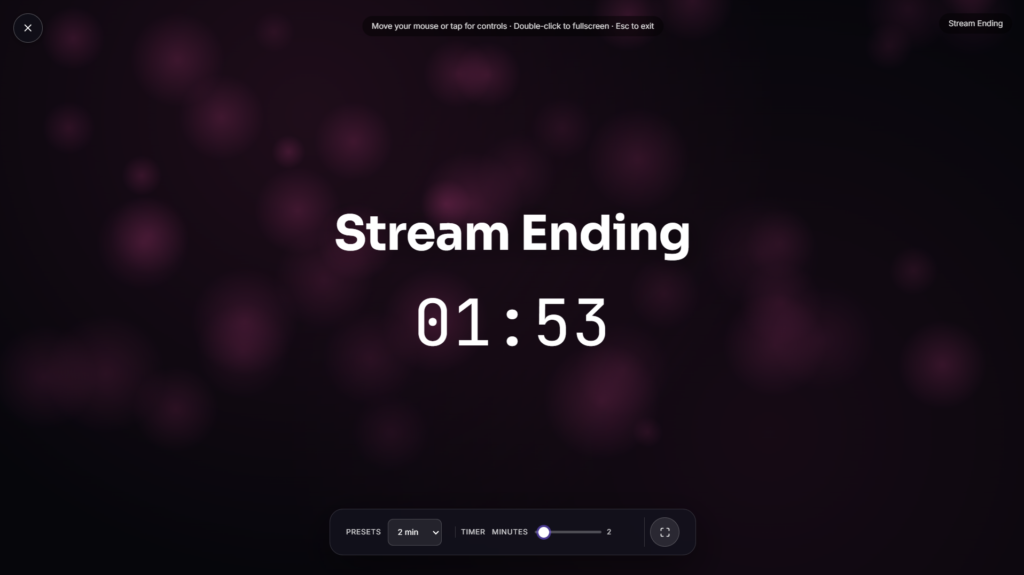
Stream Ending vs. Starting Soon and Be Right Back
These three cover different moments and work almost as a matched set. Starting Soon comes before your stream begins, building anticipation. Be Right Back covers a short pause mid-stream. Stream Ending is essentially the inverse of Starting Soon, winding energy down rather than building it up, the last thing viewers see before your channel goes quiet for the day rather than the first.
Why an Ending Screen Is Worth the Extra Few Minutes
Ending abruptly, whether that’s snapping to a black screen or just your webcam frozen mid-sentence, undercuts an otherwise well-produced livestream. A proper Stream Ending screen gives you a natural window to thank viewers directly, mention any donations or subscribers you didn’t get to shout out live, plug your social channels, and let regulars linger in chat for a few more minutes before things wrap up completely. Most streamers spend somewhere around 5 to 10 minutes on this wind-down period, roughly mirroring how long a Starting Soon screen typically runs before going live. It also gives new viewers who happened to click in right at the end a clear signal that the broadcast is closing out, rather than leaving them confused about whether something is frozen or just quiet.
Common Ways People Use a Stream Ending Screen
This works well as the closing moment for a Twitch, YouTube, or Kick stream, a wrap-up screen after finishing a game or segment, or a consistent bit of branding that bookends your stream alongside a matching Starting Soon screen. Using both together gives your channel a clear beginning and end rather than starting and stopping in whatever way happens to be convenient in the moment, which over time contributes to a more polished, professional feel for your whole channel rather than any single stream.
FAQ
Do I need OBS or Streamlabs to use this?
No, you can display it directly in a browser tab as your closing scene before ending your broadcast entirely.
How long should I leave a Stream Ending screen up?
Around 5 to 10 minutes is typical, enough time for a proper thank-you and wind-down without dragging the close out unnecessarily.
Should this match my Starting Soon screen?
Matching branding between the two reinforces a consistent look for your channel, though it’s not required, some streamers deliberately vary the tone between the two.
Do I need to download anything?
No, it runs directly in your browser, nothing to install.
Will this work on my phone if I stream from mobile?
Yes, it renders the same in any modern mobile browser as it does on a laptop or desktop.
What should I actually say during the wind-down period?
A genuine thank-you to viewers, a quick recap of anything memorable that happened, a mention of your next scheduled stream, and a reminder of where to find you elsewhere covers most of what regulars and new viewers alike are hoping to hear before you sign off.
Should I keep talking to chat while the ending screen is up, or just let it run silently?
Most streamers keep engaging with chat during this period rather than going silent, since the wind-down time is as much a chance to connect with viewers directly as it is a visual transition, the screen itself is really just the backdrop for that conversation.
Does it matter if my stream ends at a different time than planned?
Not really, an ending screen works the same whether you’re closing out right on schedule or wrapping up early or late, it’s the deliberate, unhurried close that matters more than hitting an exact time.


