Stuck Green Pixel? How to Find and Fix It for Free

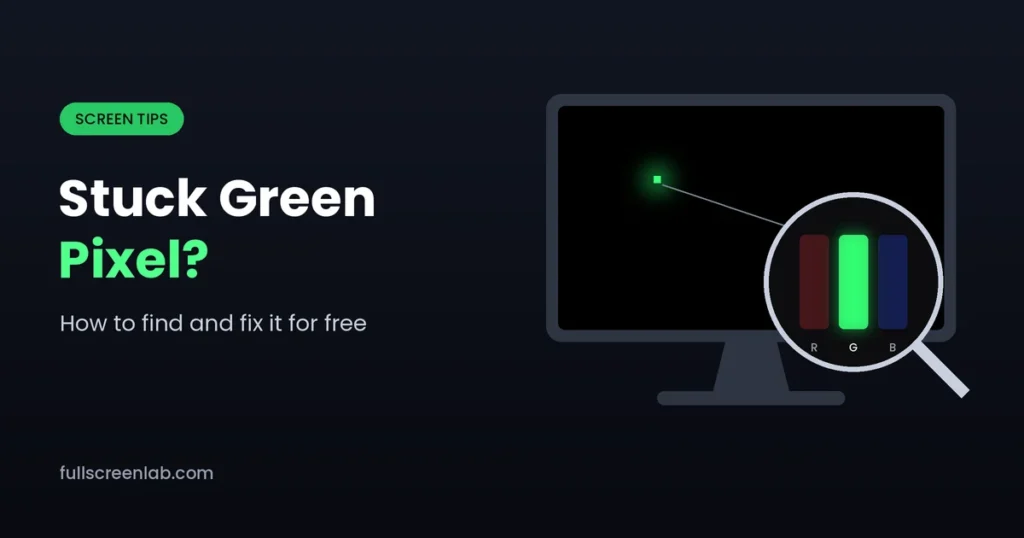
A stuck green pixel is a tiny green dot that stays lit no matter what your screen shows. You might ignore it on a busy webpage, but once you spot it, you see it everywhere.
Here is the good news: a stuck green pixel still receives power, so you can often fix it at home in under 30 minutes. This guide shows you how to confirm the problem, which fixes to try first, and when to hand it over to your warranty.
What Is a Stuck Green Pixel?
Every pixel on your screen contains three tinysubpixels: one red, one green, and one blue. Each subpixel has its own transistor that switches it on and off. Together, they mix every color you see.
A stuck green pixel appears when the green subpixel’s transistor stays on. The subpixel never switches off, so it glows green even on a black screen.
Why this matters: the pixel still works electrically. It just needs a nudge to start switching again, and that is why many stuck pixels respond to simple fixes.
Stuck, Dead, or Something Else? A Quick Guide
Before you try any fix, identify what you are looking at. Each problem needs a different solution.
| What you see | What it is | Can you fix it at home? |
|---|---|---|
| A green, red, or blue dot on a black screen | Stuck pixel (one subpixel stays on) | Often, yes |
| A white dot on a black screen | Stuck white pixel (all three subpixels stay on) | Sometimes |
| A black dot on a white screen | Dead pixel (no power reaches it) | Rarely |
| A full vertical or horizontal line | Pixel line (cable or panel fault) | No, needs repair |
| A soft, glowing patch | Monitor bright spot (backlight or pressure damage) | No, needs repair |
If your screen shows a black dot, you likely have a dead pixel. Wikipedia’s guide to defective pixels explains each type in more detail.
How to Test Your Screen for a Stuck Green Pixel
A full-screen color test takes one minute and shows you exactly what you are dealing with.
- Clean your screen first. Wipe it gently with a dry microfiber cloth. Dust often looks like a bad pixel.
- Open a black screen. Load the full-screen black screen. A stuck green pixel glows clearly against black.
- Switch to a white screen. Open the white screen. A dead pixel shows up here as a dark dot.
- Check red, green, and blue. Cycle through the red screen, green screen, and blue screen. A stuck green pixel blends in on the green screen but stands out on red and blue.
- Mark the spot. Note roughly where the pixel sits so you can aim the fixes at it.
Tip: Press F11 on a computer to hide your browser bars and fill the whole screen.
How to Fix a Stuck Green Pixel
Work through these fixes in order. Each one carries more risk than the last.
Fix 1: Turn the screen off and wait
Best for: a pixel that appeared recently.
Switch off your monitor or device and leave it off for a few hours, or overnight. A stuck subpixel sometimes resets on its own. This fix costs nothing and carries zero risk, so start here.
Fix 2: Run a stuck pixel fixer
Best for: most stuck pixels. This is the fix that works most often.
A stuck pixel fixer flashes rapid colors over the problem area. The constant switching “exercises” the stuck subpixel and can get its transistor working normally again.
- Choose a tool. Free browser tools like JScreenFix need no download.
- Position the flashing area over your stuck green pixel.
- Let it run for 10 to 30 minutes.
- Check the result. If the pixel is still stuck, run it again for up to an hour.
Safety warning: flashing colors can trigger seizures in people with photosensitive epilepsy. Look away while the fixer runs, and keep it out of sight of anyone sensitive to flashing light.
Fix 3: Use gentle pressure (last resort)
Best for: stubborn stuck pixels on LCD monitors, after the other fixes fail.
- Turn off the screen.
- Fold a microfiber cloth over your fingertip or the rubber end of a pencil.
- Press very lightly on the exact spot of the stuck pixel.
- Keep the pressure steady and turn the screen back on.
- Release the pressure and check the pixel.
Be careful: pressing too hard can crack the panel or create new dead pixels. Skip this method on phones, tablets, OLED screens, and any device you cannot afford to damage.
Does It Work on Phones and OLED Screens?
LCD screens (most monitors and budget laptops) respond best to these fixes, because a backlight shines through liquid crystals that a stuck transistor holds open.
OLED screens (most modern phones and many TVs) work differently. Each pixel produces its own light, so a stuck pixel fixer succeeds less often. It is still safe to try Fix 1 and Fix 2. Avoid Fix 3 on OLED.
What About a Stuck Pixel Line?
A stuck pixel line is a full vertical or horizontal line of color. It is not a stuck pixel, and a stuck pixel fixer cannot repair it.
Lines usually point to one of these problems:
- A loose display cable inside a laptop or between a monitor and your computer
- A failing panel driver that controls a whole row or column of pixels
- Physical damage to the screen
Quick check: connect your device to a different monitor. If the line disappears, your original screen or its cable is at fault. On a laptop, restart and watch the startup logo. If the line appears before Windows or macOS loads, the problem is hardware, not software.
What About a Monitor Bright Spot?
A monitor bright spot looks like a soft, glowing patch rather than a sharp dot. Pressure damage or a problem with the backlight usually causes it. You see it most clearly on a black screen.
Bright spots don’t respond to a stuck pixel fixer. If a new monitor shows one, contact the seller for a replacement.
What Not to Do
- Don’t use sharp objects. Pens, pins, and fingernails scratch and crack screens.
- Don’t use magnets. Magnets do nothing for modern screens and can damage other parts.
- Don’t apply heat. Hair dryers and hot cloths can warp the panel.
- Don’t press hard. Firm pressure turns one stuck pixel into several dead ones.
When to Use Your Warranty
If none of the fixes work, check your warranty before you spend money on repairs.
- Find the pixel policy. Most monitor, laptop, and phone brands publish one. It states how many stuck or dead pixels qualify for a replacement.
- Check the return window. Many retailers accept returns for any reason within the first few weeks, which is often easier than a warranty claim.
- Take clear photos. Photograph the stuck green pixel on a black screen. Include a wider shot that shows its position.
- Contact support. Share your photos and describe the fixes you already tried.
Good to know: some premium monitors come with a zero bright pixel guarantee, which covers even a single stuck pixel.
FAQ
Can a stuck green pixel fix itself?
Sometimes. A stuck green pixel can reset after you leave the screen off for a few hours. Most, however, need a stuck pixel fixer.
Is a stuck green pixel the same as a dead pixel?
No. A stuck green pixel glows green because its green subpixel stays on. A dead pixel stays dark because no power reaches it.
How long should I run a stuck pixel fixer?
Start with 10 to 30 minutes. If the pixel stays stuck, run the fixer again for up to an hour before you try other options.
Can a stuck pixel spread to other pixels?
A single stuck pixel does not spread. If new stuck or dead pixels keep appearing, your panel may be failing, so contact the manufacturer.
Will a stuck pixel fixer damage my screen?
No. Flashing colors cannot harm your display. The only risk applies to people who are sensitive to flashing light.
Can I fix a dead pixel the same way?
Rarely. A dead pixel receives no power, so flashing colors cannot reach it. For a dead pixel fix or dead pixel repair, your warranty is usually the best option.
More Screen Tips
Monitor Refresh Rate Test: How to Check and Set Your Hz
Refresh rate is how many times per second your screen redraws the picture, measured in hertz (Hz). A…
How to Fix Screen Flickering on Windows 10 and 11
Use Task Manager to tell a driver problem from an app problem, then work through proven fixes for…
 Screen Tips
 How to Use Your Screen as a Light: Calls, Reading, Photos
Turn any phone, laptop, or monitor into a soft ring light, reading lamp, or backup light with the…