Screen Burn In Test: How to Check, Prevent and Fix It


Screen burn in is a faint, permanent ghost of an image that stays on your display, like a channel logo, a taskbar or a game HUD. A screen burn in test takes about two minutes: show a plain white or grey screen in fullscreen and look for shapes that should not be there. This guide shows how to run the test, how to tell burn-in from temporary image retention, and what you can do about it.
On this page
- What Is Screen Burn-In?
- How to Run a Screen Burn In Test
- Burn-In vs Image Retention
- Which Screens Get Burn-In?
- How to Fix or Reduce Burn-In
- How to Prevent Screen Burn-In
- Screen Burn In Test FAQs
What Is Screen Burn-In?
Screen burn-in happens when some pixels wear out faster than others. If the same bright image sits in one place for hundreds of hours, those pixels age unevenly. Later, when the screen shows a plain colour, you can still see a faint outline of the old image.
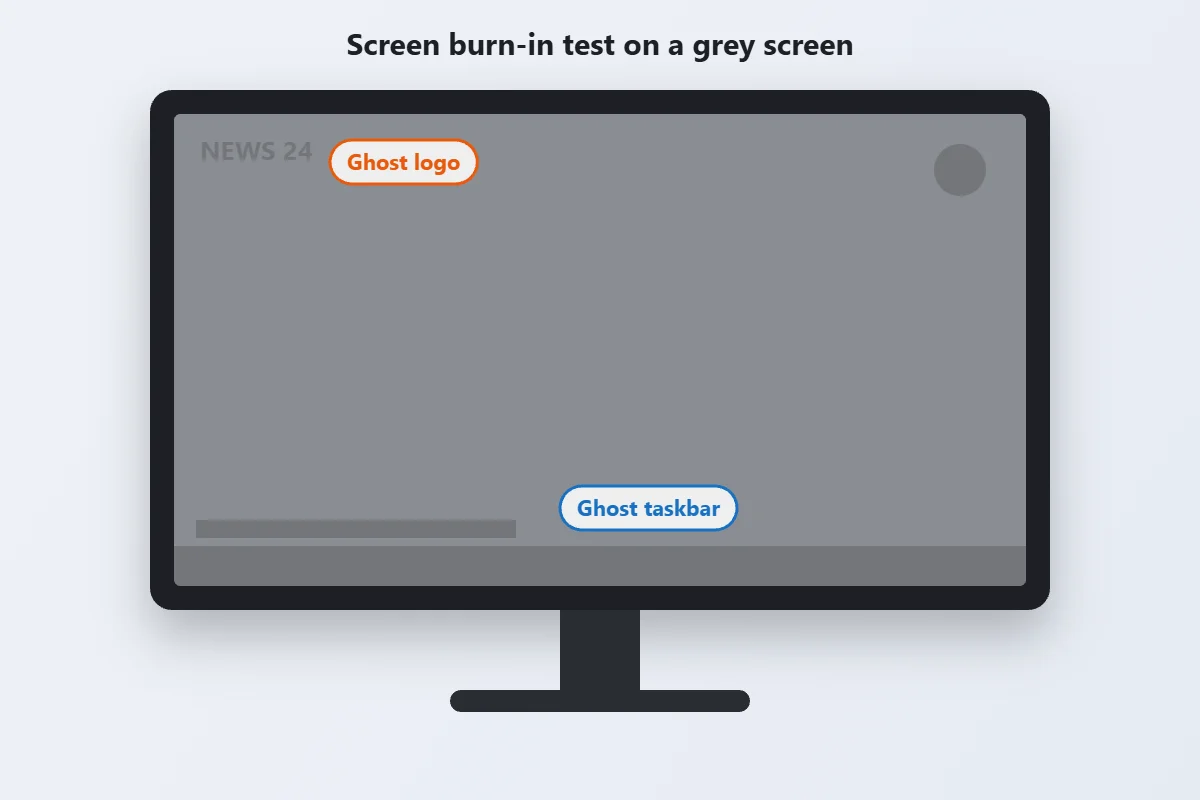
Common sources of burn-in include:
- TV channel logos and news tickers that never move.
- Taskbars, docks and status bars on monitors and phones.
- Game HUDs like health bars, maps and scoreboards.
- Navigation buttons on older Android phones.
How to Run a Screen Burn In Test
You only need a browser and a few solid colour screens.
- Clean the screen. Dust and smudges can look like faint marks.
- Set brightness to about 50 to 100 percent. Burn-in is easier to spot on a bright screen.
- Open a white screen in fullscreen. Use the FullScreenLab white screen and press F11 or tap fullscreen.
- Look for ghost shapes. Check where logos, taskbars or keyboard bars usually sit.
- Repeat with a mid grey screen. Grey around 50 percent shows burn-in most clearly.
- Cycle through colours. Try the red, green and blue screens. Burn-in often shows as a tint in one colour.
- Test again after a few hours. If the ghost has faded, it was image retention, not burn-in.
Burn-In vs Image Retention
Both look like a ghost image, but only one is permanent. Knowing which one you have saves a lot of worry.
| Feature | Image retention | Burn-in |
|---|---|---|
| How long it lasts | Minutes to a few hours | Permanent |
| Cause | A static image shown for a short time | Uneven pixel wear over hundreds of hours |
| Fades with normal use? | Yes | No |
| Fixed by a pixel refresh? | Usually | Can reduce it, but rarely removes it |
| Worry level | Low | Worth a warranty check |
The quick check: play varied video for an hour, then run the test again. Retention fades. Burn-in stays in the same spot.
Which Screens Get Burn-In?
- OLED and AMOLED: the most at risk, because each pixel makes its own light and wears on its own. This includes many phones, OLED TVs and newer OLED monitors. Run a full OLED screen test to check uniformity as well.
- Plasma: older plasma TVs were well known for burn-in.
- LCD and LED: rarely get permanent burn-in, but can show temporary image retention. Light leaking at the edges is a different problem, covered in our backlight bleed test.
How to Fix or Reduce Burn In
True burn-in is physical wear, so it cannot be fully undone. These steps can make it less visible.
- Run the built-in pixel refresh. Many OLED TVs and monitors have a panel refresh or pixel cleaning option in the settings. It evens out pixel wear and works best on fresh image retention.
- Play full screen colour cycles. Cycling solid colours for 10 to 20 minutes can help clear image retention.
- Lower the brightness. Lower brightness makes faint ghosts harder to see and slows further wear.
- Check the warranty. Some brands now cover burn-in on OLED monitors and TVs for a set period. Take photos of the test screens before you contact the service centre.
- Replace the panel if the burn-in is severe and distracting.
How to Prevent Screen Burn-In
- Auto-hide the taskbar or dock on OLED monitors.
- Use dark mode and a moving wallpaper or screensaver. A bouncing logo screensaver keeps pixels moving when you step away.
- Set a short screen timeout so static images are not left on for hours.
- Avoid maximum brightness for long sessions.
- Switch channels or apps now and then if one logo or HUD stays on screen all day.
Screen Burn In Test FAQs
What is a screen burn in test?
It is a quick check where you show plain white, grey and colour screens in fullscreen and look for faint ghost images that should not be there.
Can screen burn-in be fixed?
True burn-in is permanent pixel wear, so it cannot be fully removed. A pixel refresh, lower brightness and colour cycling can make it less visible, and temporary image retention usually fades on its own.
How do I know if it is burn-in or image retention?
Use the screen normally for an hour with varied content, then test again. If the ghost image has faded, it was image retention. If it is still there in the same spot, it is burn-in.
Do LCD screens get burn-in?
Rarely. LCDs can show temporary image retention, but permanent burn-in is mostly an OLED and plasma problem.
Does phone burn-in happen on AMOLED screens?
Yes. Status bars, keyboards and navigation bars can leave faint marks on AMOLED phones after long use at high brightness.
Is burn-in covered under warranty?
It depends on the brand and model. Some OLED monitors and TVs include burn-in cover for a set period, so check your warranty terms and keep photos of the test.
How can I prevent burn-in on an OLED monitor?
Auto-hide the taskbar, use dark mode, set a short screen timeout, avoid maximum brightness and use a moving screensaver when you step away.
More Screen Tips
Monitor Refresh Rate Test: How to Check and Set Your Hz
Refresh rate is how many times per second your screen redraws the picture, measured in hertz (Hz). A…
How to Fix Screen Flickering on Windows 10 and 11
Use Task Manager to tell a driver problem from an app problem, then work through proven fixes for…
 Screen Tips
 How to Use Your Screen as a Light: Calls, Reading, Photos
Turn any phone, laptop, or monitor into a soft ring light, reading lamp, or backup light with the…